

Build a Collection
Collections are typed data tables. The
Database · Collections page (/database/collections) lets you define a
collection’s schema and add records to it. This page walks through both.
Prerequisites
Section titled “Prerequisites”- A signed-in session in a domain where you have Collections permission (see Groups & permissions).
- Collections are scoped to the active Domain, so confirm the domain switcher is set to the right tenant first.
The two-pane layout
Section titled “The two-pane layout”The page is split into two resizable panes:
- Left — the collection list. Each entry shows the collection name and its field count, with a delete (trash) button. The Add Collection button sits at the bottom.
- Right — the records table for the selected collection, with a breadcrumb, a refresh button, and an Add Record button.
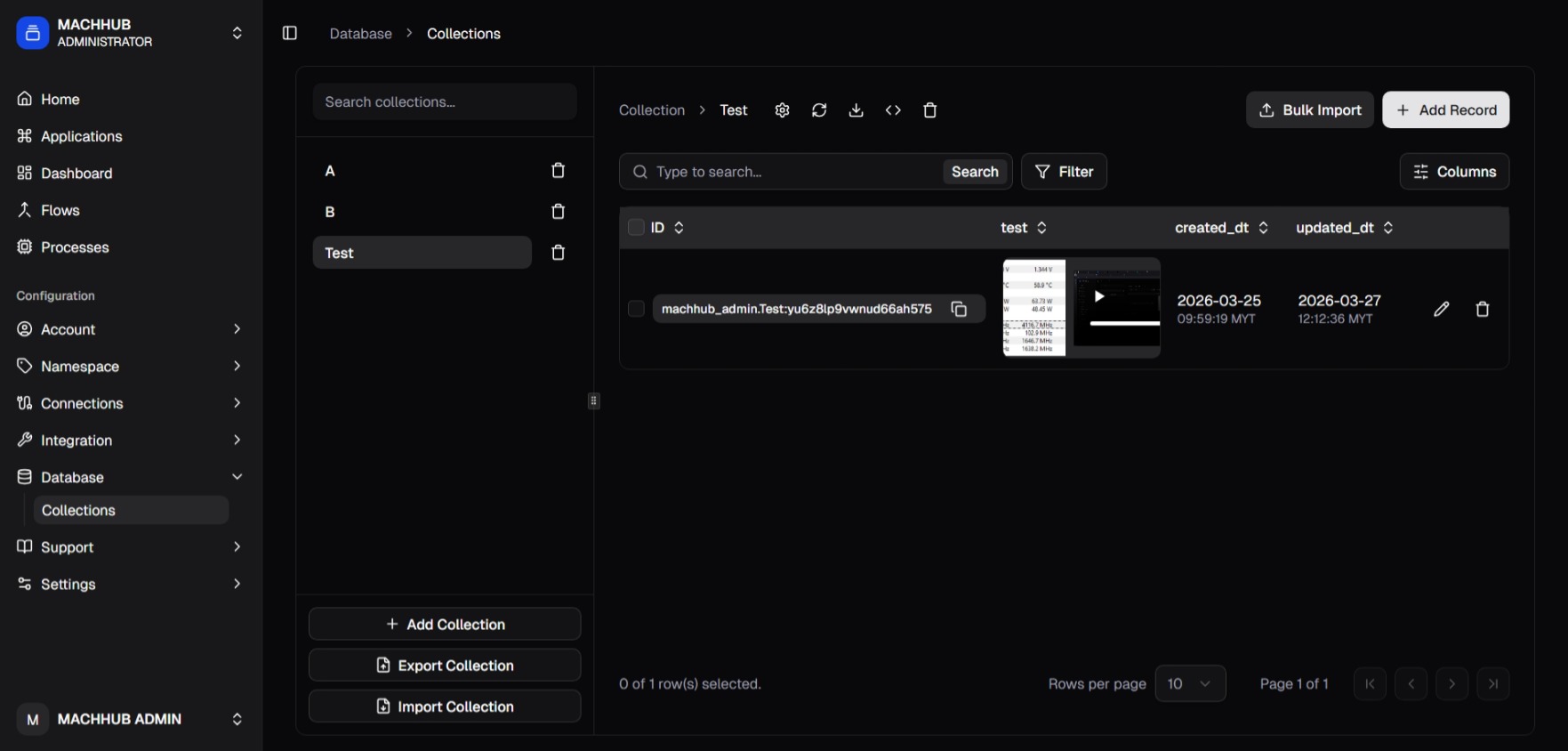
/database/collections) — collection list and records.Create a schema
Section titled “Create a schema”- Click Add Collection. A panel slides in from the right.
- Enter a Name. Names must start with a letter and contain only letters, numbers, and underscores.
- Optionally add a Description.
- Every collection starts with a locked
idfield (type record). You cannot rename or remove it — it is the record’s primary key. - Click Add Field and pick a type from the picker, then type the field’s name. Repeat for each field. Remove a field with its trash button.
- Click Save.
Field types
Section titled “Field types”The Add Field picker offers ten types:
| Type | Use it for |
|---|---|
| String | Text. |
| Number | Numeric values. |
| Boolean | True/false (a switch in the record form). |
| URL | A link. |
| DateTime | A date and time field. |
| File | An uploaded file (stored inline). |
| JSON | An arbitrary JSON object, edited in a code box. |
| Rich Editor | Formatted rich-text content. |
| Enum | A value chosen from a fixed list of options. |
| Relation | A reference to a record in another collection. |
For a Relation field, a Select a collection dropdown appears next to the field
name — choose which collection it points at. (The id field’s record type is the
built-in primary key and is not one of the ten pickable types.) You can also define
Indexes (unique or full-text) on the collection from the same form.
Saving persists the schema to the platform.
Browse records
Section titled “Browse records”Select a collection in the left pane to load its records into the table on the right. Each column renders according to its field type — for example, booleans show as a checkmark, dates are formatted, JSON is stringified, and relations show the related record’s ID. Use the refresh button to re-fetch the data.
Each row has a pencil button to edit the record (it opens the same form, pre-filled) and a trash button to delete it.
Add a record
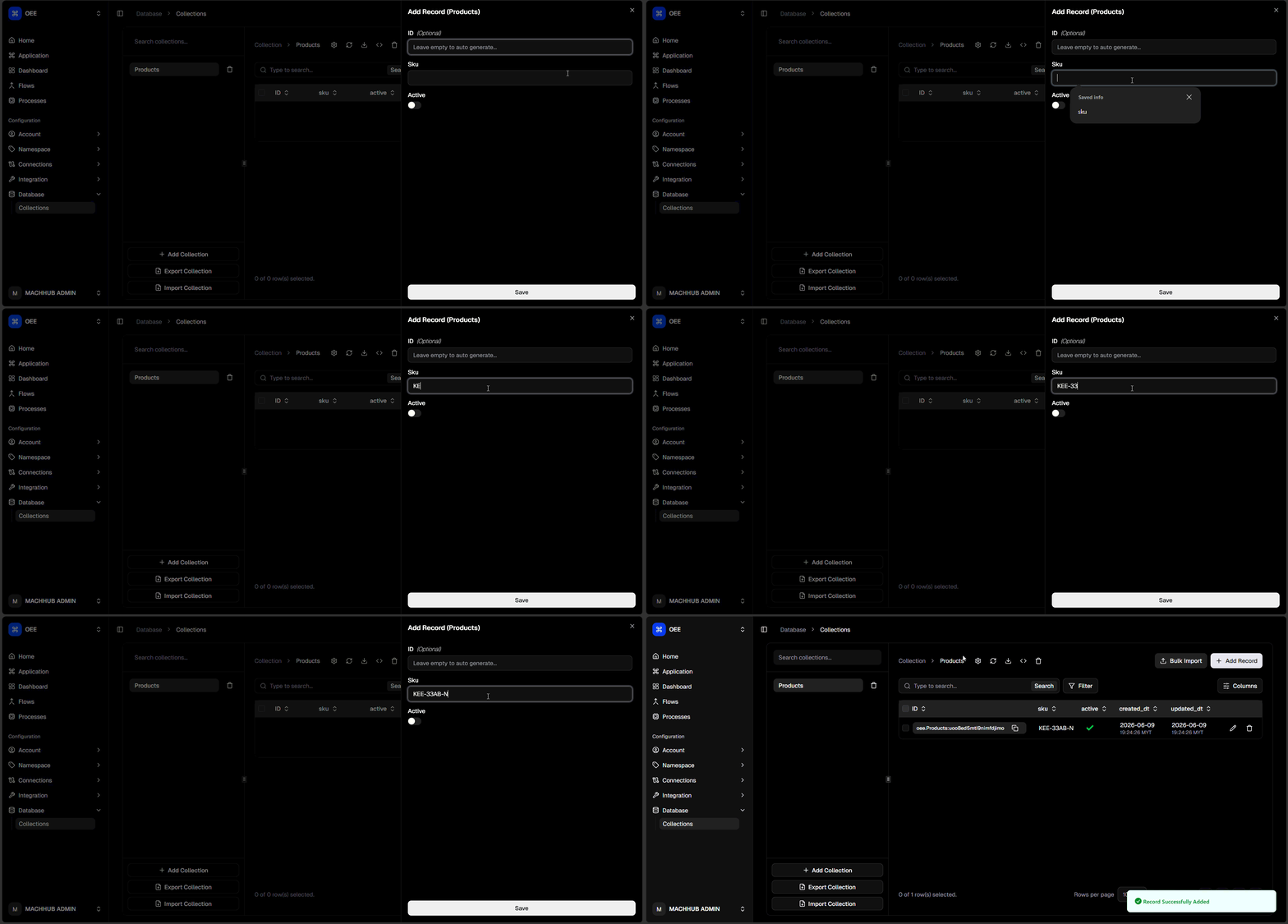
Section titled “Add a record”- With a collection selected, click Add Record. A form slides in from the right with one input per field, typed to match the schema.
- Fill the fields:
idis optional — leave it empty to auto-generate.- String / Number / URL use plain text/number inputs.
- Boolean is a toggle switch.
- DateTime opens a date-and-time picker.
- File is a file upload.
- JSON is a code box pre-filled with a small template.
- Relation uses a record picker: click Open picker, search and select a record from the related collection, then Set selection.
- Click Save. The record is persisted to the collection and the table refreshes.
Related
Section titled “Related”- Collections (concept) — the data model and field types.
- SDK · Collections — read and write the same collections from code.