

Logging in & domains
This page covers getting into the console: signing in at /login, switching the
active Domain, and logging out. Switching domains is the single
most important thing to understand before you start clicking around — it changes both
the data you see and which navigation sections are available.
Prerequisites
Section titled “Prerequisites”- A reachable MACHHUB instance.
- A user account with a username and password. There is no self-service sign-up in this build (see below).
Signing in
Section titled “Signing in”Open the console and you land on the Login screen — a split layout with the brand image on the left and the form on the right.
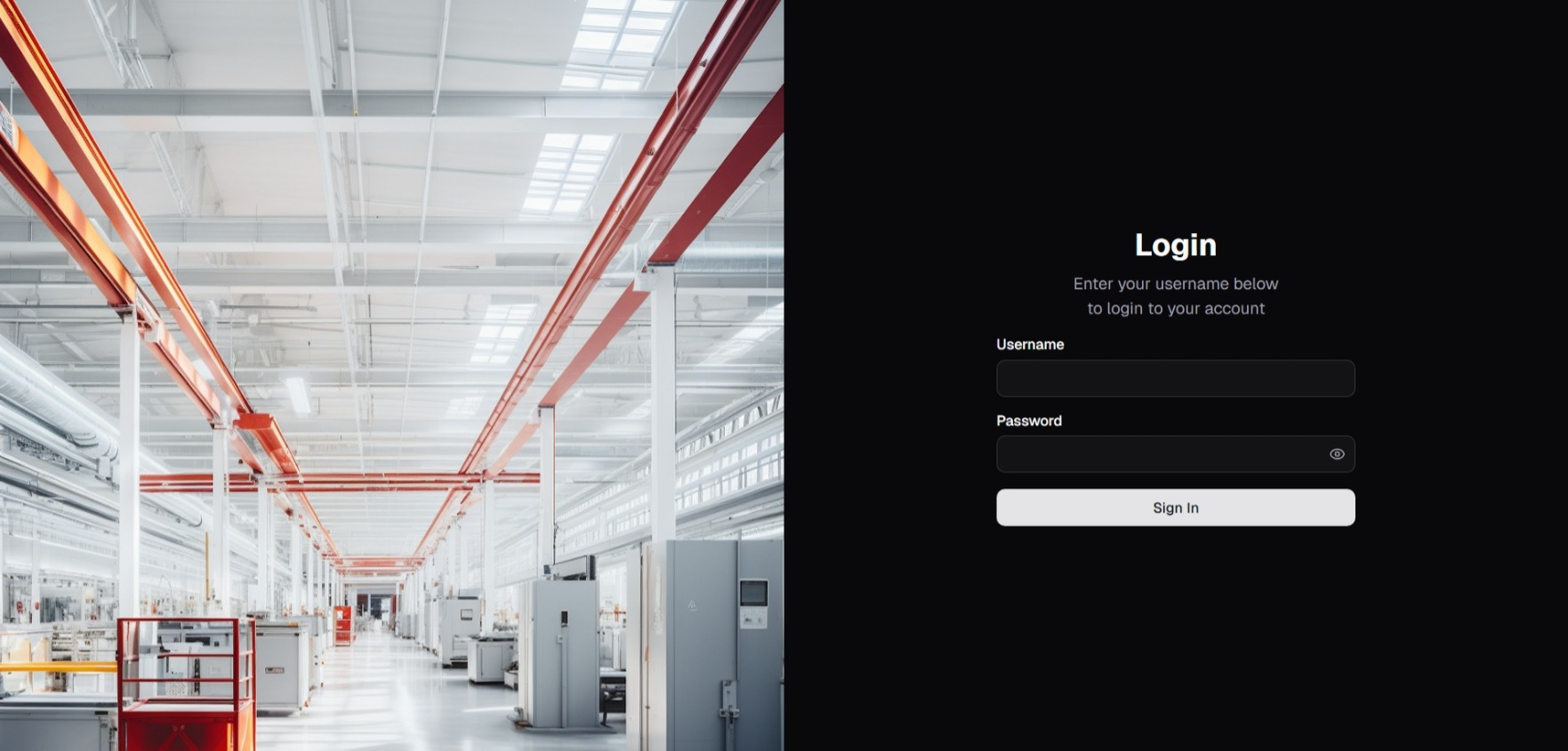
- Enter your Username (default
admin). - Enter your Password (default
admin). - Click Sign In.
The default administrator credentials are admin / admin on a fresh install. Change
the password after first sign-in — see First login & bootstrap.
On success you see a Login Successful toast and are taken to the Home dashboard.
The domain switcher
Section titled “The domain switcher”A Domain is a tenant. At the very top of the sidebar is the domain switcher, showing the active domain’s name and a chevron. Clicking it opens a menu that groups domains under two headings:
- System — the built-in MACHHUB domain
(
domains:machhub_admin, the default after login) and the Node-RED system domain. - Application — any Application domains you have created.
Selecting a domain changes the active domain. Each domain row also has a star action to set it as your default domain, and the menu has an Add Domain action for creating a new Application domain.
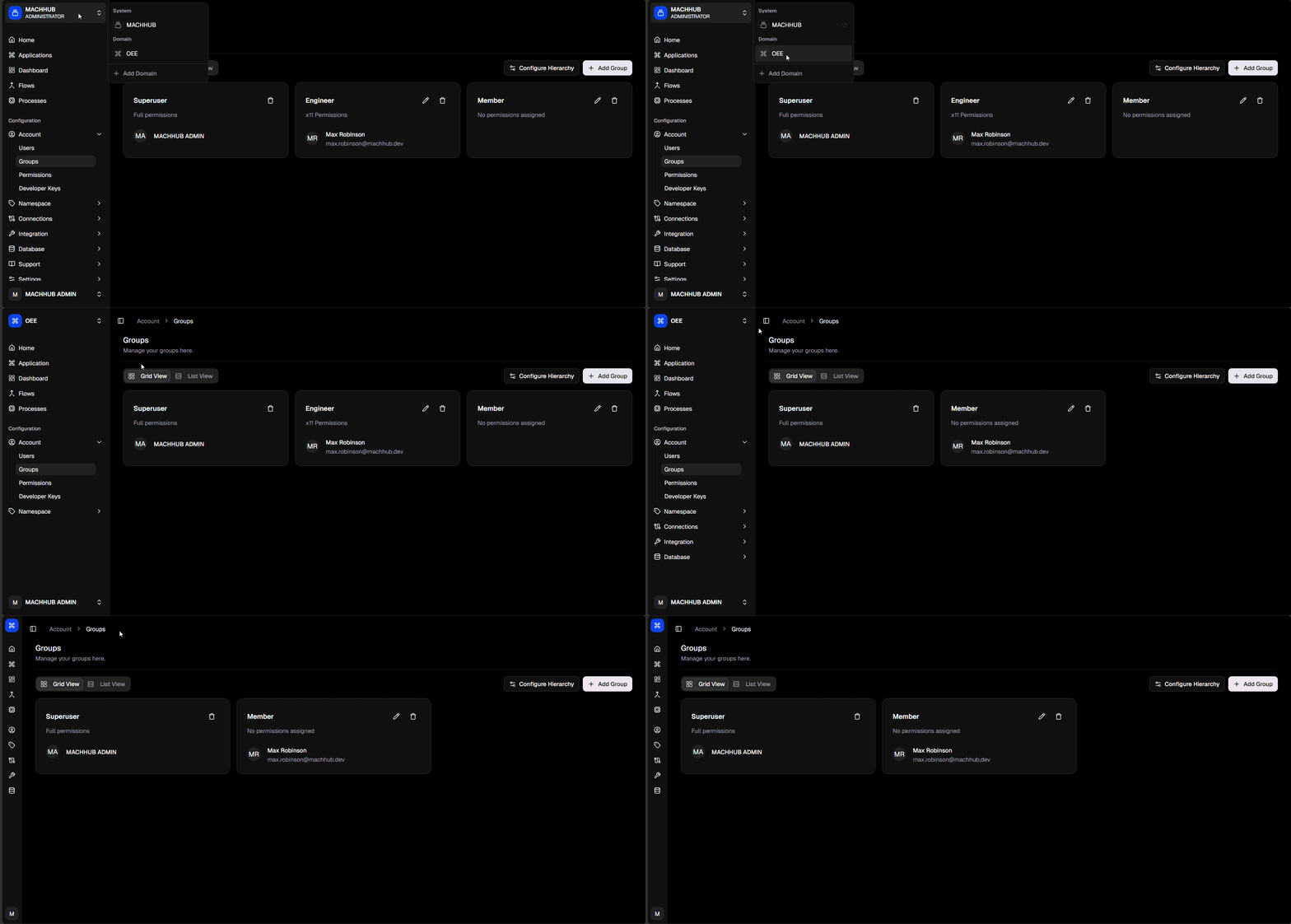
Switching changes the visible navigation
Section titled “Switching changes the visible navigation”The set of sidebar sections depends on the active domain:
| Active domain | Sections shown |
|---|---|
MACHHUB / Administrator (domains:machhub_admin) | Home, Applications, Dashboard, Flows, Processes, plus Account, Namespace, Connections, Integration, Database, Settings, and Support. |
| Any Application domain | Home, Dashboard, Flows, Processes, plus Account, Namespace, Connections, Integration, and Database. |
In other words, the Applications entry and the platform-wide Settings and Support sections appear only in the admin domain. Application domains still expose Account (users, groups, permissions, developer keys), the Namespace, Connections, Integration, and Database.
Logging out
Section titled “Logging out”Open the user menu at the bottom of the sidebar (your avatar, name, and email).
It offers a light/dark theme toggle, Edit Profile (see Profile),
and Log out. Logging out clears your session and returns you to /login.
Related
Section titled “Related”- Console Overview — the shell, sidebar, and breadcrumb.
- Domains — what tenants are and how they isolate data.
- API · Authentication — login endpoint, JWTs, and the
Domainheader.