

Contribute to this page
Historize a tag
Historizing a tag tells MACHHUB to record its values over time so you can chart and export them later in the Historian.
Enable history
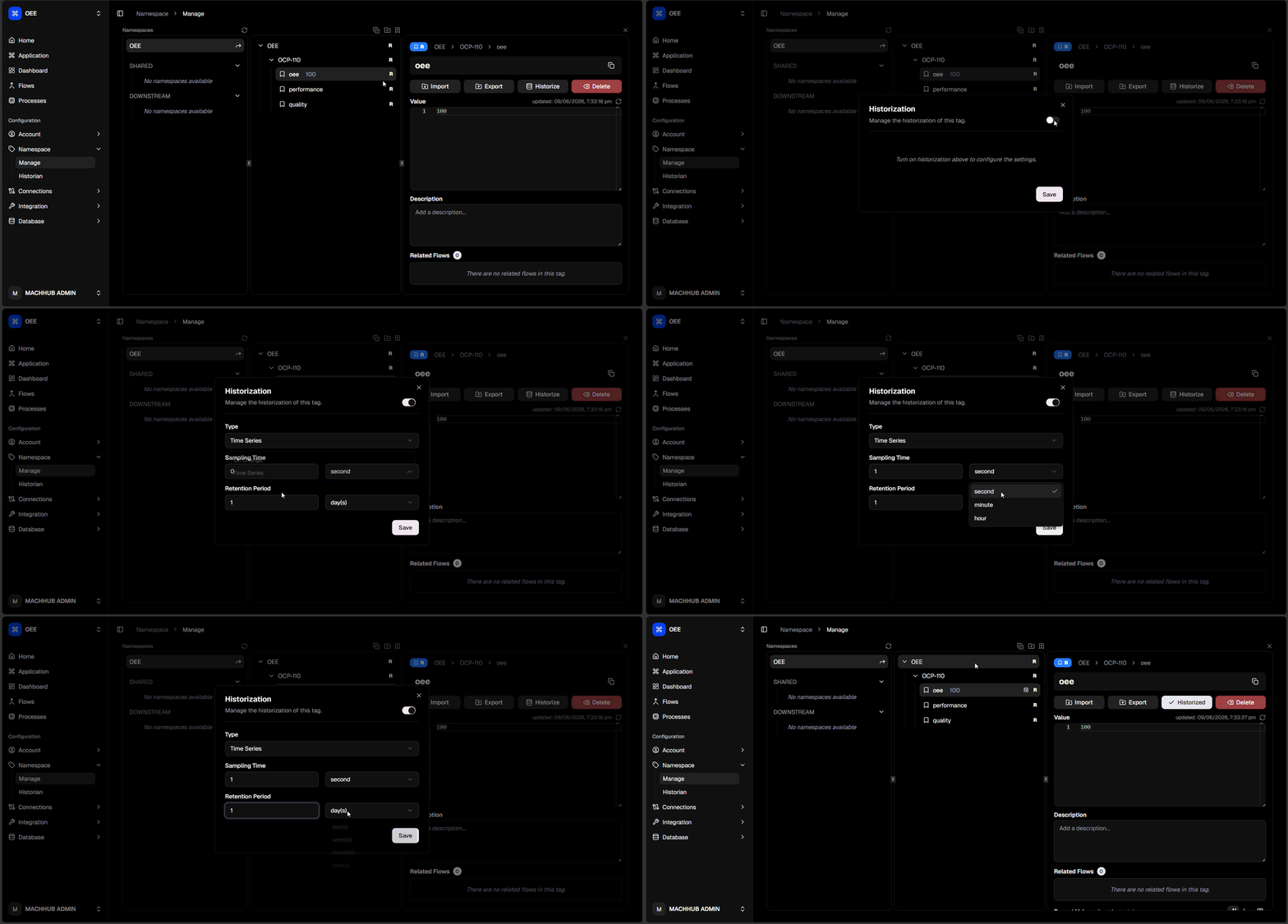
Section titled “Enable history”- Open Namespace → Manage and select a tag.
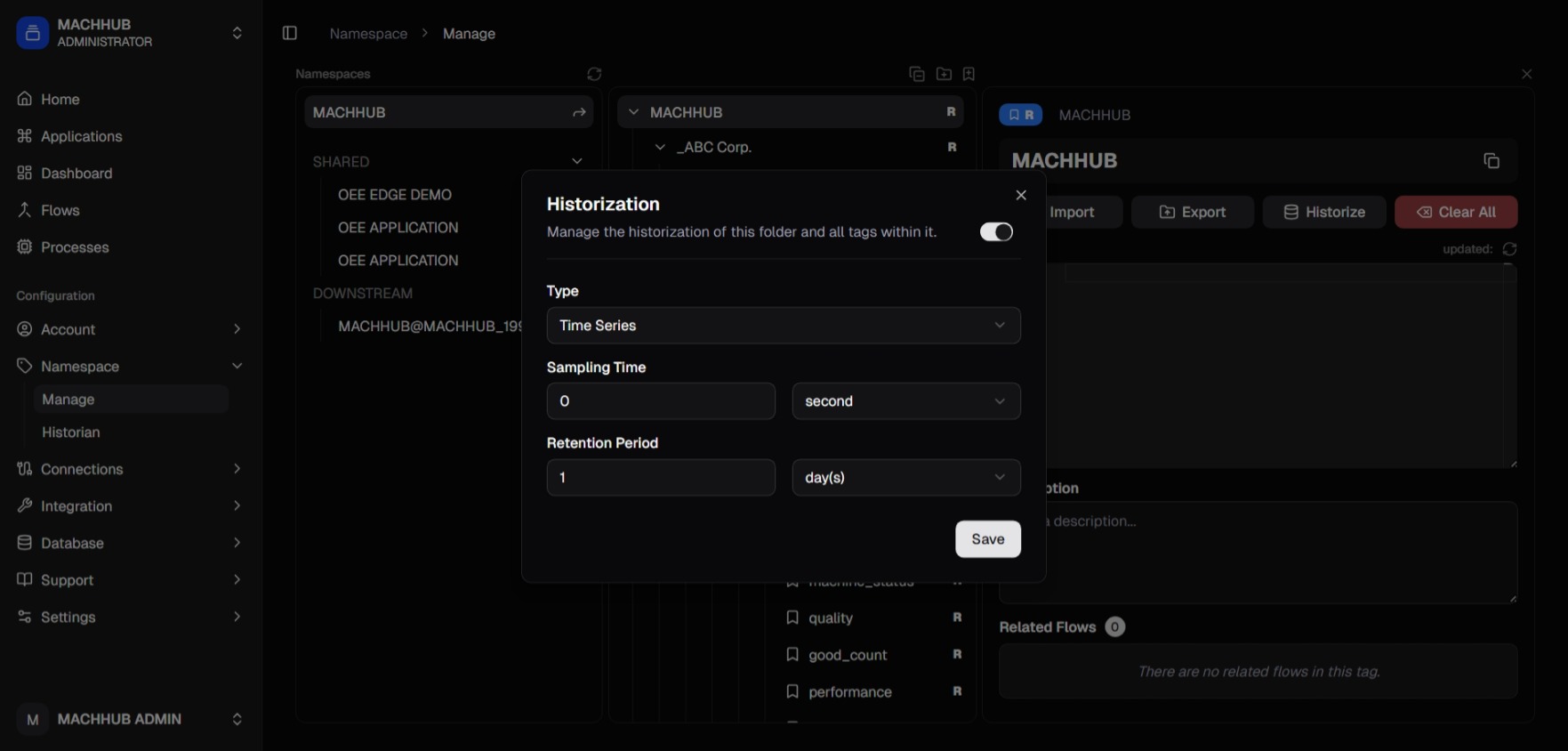
- In the tag-details pane, open the Historize dialog.
- Toggle history on and choose a Type:
- On Change (
event) — record a point each time the value changes. - Time Series (
timeseries) — record on a fixed schedule.
- On Change (
- For Time Series, set the Sampling Time and unit (second / minute / hour).
- Set a Retention Period and unit (day / week / month / year).
- Save. The tag now shows a history icon in the tree.
On-change vs. time series
Section titled “On-change vs. time series”flowchart TB
V["Tag value updates"] --> Q{"Historize type?"}
Q -->|On Change| E["Store a point only when the value changes"]
Q -->|Time Series| S["Store a point every sampling interval"]
E --> H[("Historian")]
S --> H
- Use On Change for state-like or sparse signals.
- Use Time Series for continuous signals you want sampled at a steady rate.
Retention
Section titled “Retention”The retention period controls how long history is kept before old points are pruned. Choose a period that matches your analysis and compliance needs.
- View and export history → Historian
- Query history in code → SDK → Historian
- Concept → Historian