

Console Overview
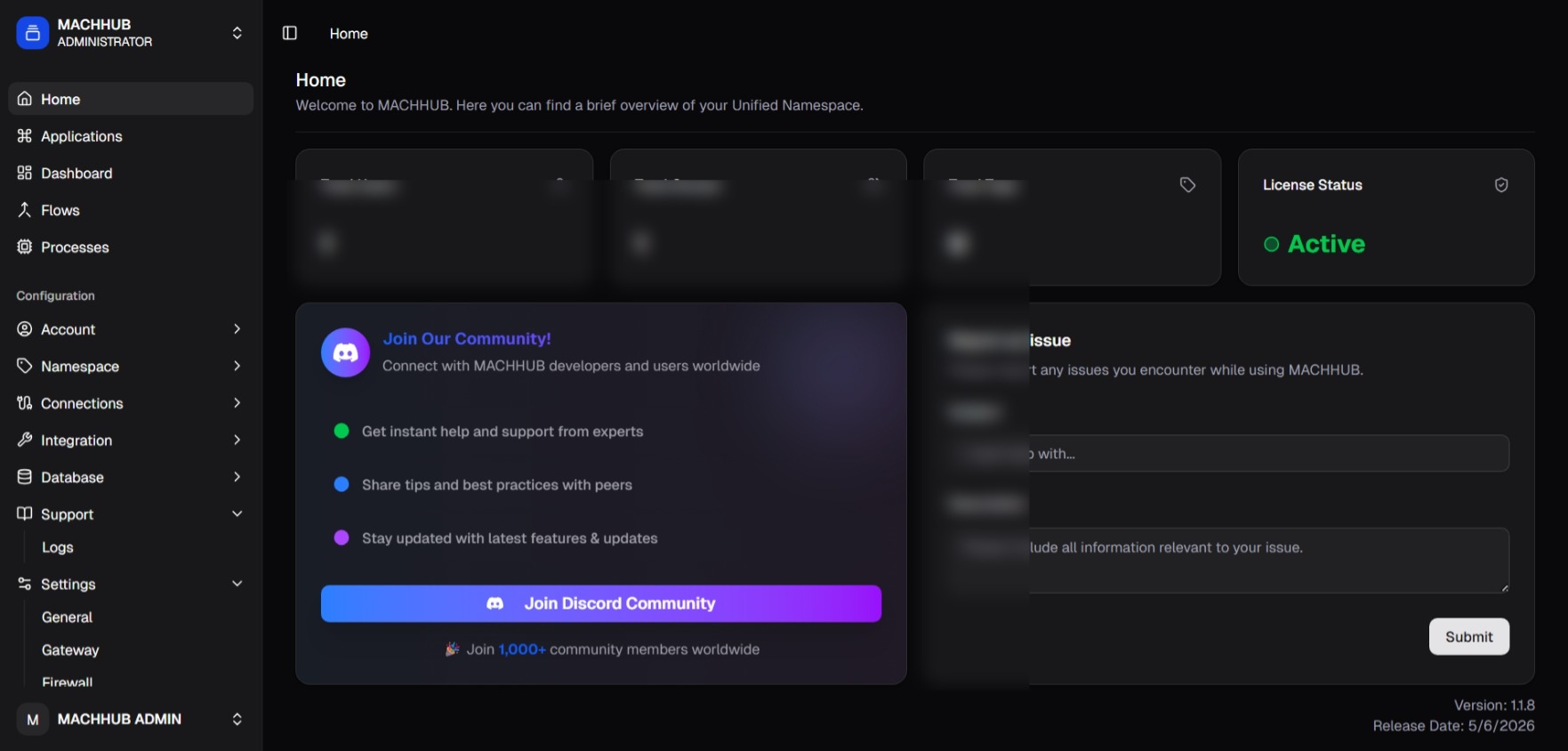
The MACHHUB web console is the browser app you use to operate the platform: build collections, manage the Unified Namespace, view the Historian, and administer users. It is a single-page app that talks to the REST API and subscribes to tags over MQTT-over-WebSocket.
Signing in
Section titled “Signing in”Open the console URL and sign in with your username and password. On success you land on the Home dashboard. Your session (a JWT) is kept in the browser; signing out clears it. See Logging in & domains.
The shell
Section titled “The shell”Domain switcher
Section titled “Domain switcher”At the top of the sidebar is the domain switcher. A Domain is a tenant: the built-in MACHHUB / Administrator domain, plus any Application domains you create. Switching domains changes what data and which navigation sections you see.
Navigation
Section titled “Navigation”The sidebar groups the platform into sections:
| Section | Pages | What you do there |
|---|---|---|
| Home | dashboard | See counts (users, groups, tags) and license status. |
| Applications (admin domain) | list | Deploy and manage your Applications (start/stop, ports); add their backing domains. |
| Dashboard | no-code dashboards | Build and view widget dashboards. |
| Flows | Node-RED servers | Manage your MACHHUB-managed Node-RED servers. |
| Processes | serverless functions | Author and run Python/TypeScript processes. |
| Account | Users, Groups, Permissions, Developer Keys | Manage people, permissions, and machine credentials. |
| Namespace | Manage, Historian | Edit the UNS and view history. |
| Connections | Upstreams, Downstreams, MQTT | Bridge to other MACHHUB instances and inspect MQTT clients. |
| Integration | Data Source | Connect external Node-RED, OPC UA, and SECS/GEM sources. |
| Database | Collections | Build schemas and edit records. |
| Settings | General, Gateway, Firewall, Network, License, Backups, Storage, Log | Device, network, backup, and licensing settings. |
| Support | Logs | Inspect server logs. |
User menu
Section titled “User menu”At the bottom of the sidebar, the user menu shows your name and email, a light/dark theme toggle, Edit Profile, and Log out.
Where to go next
Section titled “Where to go next”Pick the task you came to do: